

Blocking adult websites isn't a one-size-fits-all task. The most effective strategy often involves a layered approach—combining built-in device controls, network-wide router filters, and even browser-specific settings. This way, you create a safety net that covers your family's devices, whether they're at home or on the go.
Why Blocking Adult Content Matters Today

Making the decision to block adult websites goes far beyond just ticking a box in a settings menu. It's an active choice to shape a healthier, safer digital space for yourself and the people you care about. In a world of completely unfiltered internet access, taking this step is a powerful move toward digital well-being.
The reasons are often deeply personal. For parents, the primary driver is usually protecting children from stumbling across material they aren't ready for. Early exposure to explicit content can seriously skew a child's understanding of relationships and the world. But it's not just about the kids. Many adults I've worked with choose to block these sites for their own focus and productivity, finding that the endless distraction can derail personal and professional goals.
The Modern Landscape of Content Control
This isn't just a household concern anymore; it's become a public conversation. We're seeing a real shift, especially with new laws popping up across the country. As of early 2025, 20 U.S. states have passed laws mandating age verification for adult sites, leading many platforms to simply block access in those areas altogether.
This trend underscores a broader desire for more control over our digital lives. It also makes learning how to manage your own filters more relevant than ever.
Key Takeaway: The why behind your decision is the most important part. Your personal motivations—whether it's for child safety, better focus, or general digital wellness—will determine which methods will work best for you.
Choosing Your Strategy
There's no magic bullet for blocking adult content. The best solution is almost always a combination of different methods, each offering a unique layer of protection and requiring a different level of technical know-how.
- Network-Level Filtering: This is your first line of defense at home. By adjusting settings on your Wi-Fi router, you can filter content for every device on your network, from laptops to smart TVs.
- Device-Level Controls: These are the features built directly into operating systems, like Apple’s Screen Time or Google’s Family Link. They are essential for protecting devices like smartphones and tablets, even when they leave your home Wi-Fi and connect to cellular data.
- Browser-Specific Settings: This is the most granular level of control. You can enable SafeSearch on Google or use browser extensions to block specific sites and filter search results right inside Chrome, Safari, or Firefox.
Methods to Block Adult Content at a Glance
To help you decide where to start, here’s a quick breakdown of the common approaches and what they’re best suited for.
| Method | Scope of Protection | Best For | Technical Skill Required |
|---|---|---|---|
| Router-Level Filtering | All devices on your home Wi-Fi network. | Creating a baseline of safety for your entire home network. | Moderate |
| Device-Level Controls (OS) | A specific device (phone, tablet, computer), regardless of network. | Protecting children's mobile devices and laptops everywhere. | Low to Moderate |
| Browser Extensions | A specific web browser on a single device. | Adding a quick, extra layer of filtering or blocking specific sites. | Low |
| ISP-Provided Controls | All devices connected through your internet service. | A simple, set-it-and-forget-it option for basic filtering. | Low |
Understanding how these methods interact is key. For example, router-level filtering is fantastic for at-home protection, but it becomes useless the moment a smartphone switches to a cellular network. That’s why pairing it with device-level controls is so effective. If you're exploring the nuances of online content, our guide on 7 safe cam sites you should know offers more context on discerning different types of platforms.
Ultimately, by layering these tools, you can build a robust system that aligns with your family’s specific needs.
Securing Your Entire Home Network via Your Router
While managing settings on each phone and laptop is a good start, the most powerful move you can make is to block adult content right at the source: your Wi-Fi router. Think of it as the main gate for all internet traffic coming into your home. By setting up filters here, you create a baseline of protection for every single device on your network.
This is a set-it-and-forget-it approach that I’ve found to be incredibly effective. Once you’ve configured your router, the rules automatically apply to everything—laptops, smartphones, tablets, gaming consoles like an Xbox or PlayStation, and even smart TVs. No more installing separate apps on every device. You make the rules once, and your network enforces them for you.
Getting Into Your Router's Control Panel
First things first, you need to log into your router's admin settings. Don't worry, this sounds more technical than it usually is. All you're doing is finding your router's local IP address, which is like its private address on your home network.
Most of the time, you can find this IP address printed right on a sticker on the router itself. It'll often be something like 192.168.1.1 or 192.168.0.1. Just type that into your web browser's address bar, hit Enter, and you’ll see a login screen. The default username and password are also usually on that same sticker.
Log in, and you'll land on the router’s dashboard. This is the command center for your entire network.
A Quick Tip from Experience: If the default login details don't work, it's probably because they were changed when your internet was first installed. If you can't remember the new credentials, try a quick web search for your router's model and "default password." As a last resort, you can perform a factory reset, but be aware this will wipe all your custom settings.
Finding and Turning On the Content Filters
Every router brand—whether it's Netgear, Linksys, or TP-Link—has a slightly different menu layout. You're looking for a section with a name like Parental Controls, Content Filtering, Access Control, or Website Blocker. I usually find it tucked away under a "Security" or "Advanced Settings" tab. Take a minute to click around; you'll find it.
Once you’ve found the right section, you'll need to enable the feature. Modern routers make this pretty simple.
- Pre-set Categories: The easiest method is to use the built-in categories. Look for checkboxes next to terms like "Adult," "Pornography," "Gambling," or "Mature Content." Just check the boxes, and the router will start blocking a massive, constantly updated list of inappropriate sites.
- Keyword Blocking: Some routers let you block sites if certain words appear in the URL. This can be handy but sometimes blocks perfectly fine websites by accident, so use this one with a bit of caution.
- Custom Blocklists: For total control, you can create a "blacklist" or "blocked sites" list. This is where you manually add the specific URLs of websites you want to block. It's perfect for targeting a few problem sites you're already aware of.
This image shows how different layers of protection work together, with router filters acting as that crucial, foundational step for your whole network.
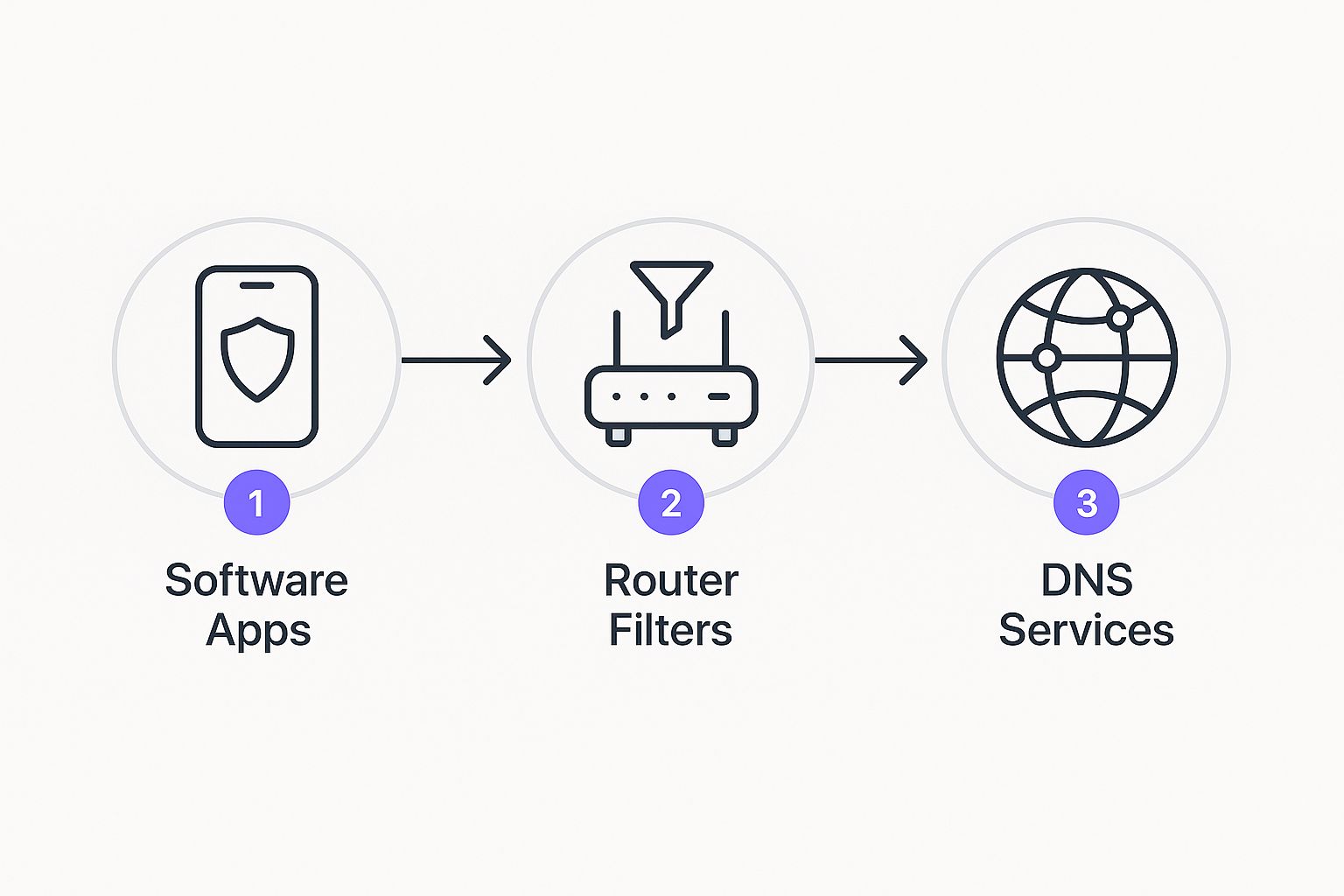
As you can see, filtering at the router level provides a wide net that catches everything connected to your home Wi-Fi.
Creating Exceptions with Whitelists
Sometimes, broad category blocking can be a little too aggressive. For example, a filter might block a site like Reddit entirely, even if you only want to restrict access to certain communities. This is where a whitelist becomes your best friend.
A whitelist (or "allowed sites" list) does the opposite of a blacklist. It’s a list of specific websites that are always allowed, no matter what other filter rules are in place. You could block the entire "Social Media" category but then add LinkedIn.com to your whitelist to keep it accessible for professional reasons. This is especially relevant for subscription platforms where many creators work; you can learn more by uncovering the average OnlyFans income in our guide.
This level of fine-tuning helps you create a safe online environment that works for your family without being overly frustrating. Just remember to hit "Save" or "Apply" before you log out of your router’s settings.
Using Built-In Controls on Your Devices
While router settings are a fantastic first line of defense for your home network, that protection disappears the second a phone or tablet switches over to cellular data. This is precisely why built-in device controls are so critical. Every major operating system—whether from Apple, Microsoft, or Google—comes with powerful, free tools designed to give you direct control over what content can be accessed on that specific device.
Think of these controls as a personal security detail that travels with the device. They ensure the rules you've set at home stay in place, offering consistent protection no matter what network is being used. This layer is absolutely crucial for managing mobile devices, which for many family members, are the primary gateway to the internet.
Activating Content Filters on Apple Devices
If you're in the Apple ecosystem, your best friend for content control is Screen Time. It's built into iPhones, iPads, and Macs, and it's surprisingly powerful for a free, native tool. It goes far beyond just tracking usage; you can use it to actively block adult websites and even restrict specific apps.
Getting it set up is straightforward. Head into Settings > Screen Time. If you haven't used it before, you'll be prompted to turn it on. Be sure to set a unique Screen Time passcode—this is vital, as it prevents anyone from changing the settings you’ve just established. Once that's done, go to Content & Privacy Restrictions.
This is where the magic happens. You can:
- Limit Adult Websites: Under "Content Restrictions," tap "Web Content." Simply selecting "Limit Adult Websites" turns on Apple's automatic filter. It’s pretty comprehensive right out of the box.
- Create Your Own Blacklists and Whitelists: You can add specific URLs to a "Never Allow" list, which is perfect for catching sites the automatic filter might miss. On the flip side, you can add sites to an "Always Allow" list to guarantee access to important school or research websites.
What I love about Screen Time is how it integrates across a user's iCloud account. This makes managing filters seamless if your family uses a mix of iPhones, iPads, and Mac computers.
A Practical Takeaway: I always recommend setting a Screen Time passcode that is completely different from the device's main unlock code. This one simple move creates a much stronger barrier against tech-savvy kids who might try to find a way around the filters you've put in place.
Managing Content on Windows and Android
For those on Windows, Microsoft Family Safety is the tool you'll want to use. It allows you to create a "family group" and add child accounts. From your primary Microsoft account, you can then apply web and search filters that work across the Microsoft Edge browser on any Windows PC or Xbox console your child logs into.
You can block individual websites or just lean on Microsoft's default filter to block adult search results and sites automatically. It also gives you activity reports, which are great for starting conversations about healthy online habits.
Over on the Android side, the go-to solution is Google Family Link. Once you install the app on your device and your child's, you gain a ton of control over their digital world. With Family Link, you can:
- Block specific sites or, for younger kids, only allow access to a hand-picked list of approved websites.
- Guide them to age-appropriate content by managing app permissions through the Google Play Store.
- Review their app activity to see where they're spending their time.
These native tools are effective because they're baked directly into the operating system, making them tough to bypass without the parent's login credentials.
Why Device-Level Controls Are Non-Negotiable
Relying only on a filtered home Wi-Fi network leaves a huge gap. The world is mobile, and our approach to content filtering needs to be mobile, too. Device-level settings are the only way to make sure protection stays on when a child connects to their school's Wi-Fi, a friend's network, or a public hotspot. For those exploring the challenges of specific platforms, understanding how to navigate user-generated content sites is key; our guide on how to search in OnlyFans using easy tips and methods offers some useful context.
Ultimately, combining router-level filtering with these device-specific controls creates a layered defense that is far more robust than any single method. This dual approach helps build a safer digital environment both inside and outside your home, giving you much more comprehensive peace of mind.
Making Your Web Browser a Safer Place
While setting up blocks at the router and device level is a fantastic start, don't overlook the power you have right inside your web browser. This is your frontline defense, the place where you can fine-tune what you see and stop explicit content before it even loads. Think of it as an extra, more targeted filter that perfectly complements your other security measures.
It’s like this: your router is the main gate to your property, and your device settings are the lock on your front door. Your browser settings? That’s the security guard inside the house, screening visitors in real-time. It's an immediate, practical way to manage what comes through your screen.
Activating SafeSearch Across Your Browsers
One of the quickest and most effective steps you can take is to turn on SafeSearch. This feature is already built into major search engines like Google and Bing, and its whole job is to filter out sexually explicit images, videos, and websites from your search results. It’s an easy win for preventing accidental exposure.
In Google Chrome, which naturally uses Google Search, you can manage this setting by going straight to
google.com/safesearch. Once you’re there, you can flip the filter on and, more importantly, lock it to your Google account. This is the crucial part—locking it ensures the setting follows you to any device where you’re signed in.For Mozilla Firefox and Microsoft Edge, the approach is pretty much the same. While you can fiddle with search engine preferences in the browser's main settings, the most direct path is to go to the settings page for whatever search engine you use (Google, Bing, etc.) and enable SafeSearch there. Again, locking it to your account is what makes it stick.
A key thing I've learned from experience is that SafeSearch is only truly effective when it's locked. An unlocked setting can be toggled off in two clicks. By locking it, you create a persistent filter that stays active even if someone else is using the family computer.
Finding the Right Browser Extension
If you're looking for more muscle and customization, browser extensions are the way to go. These are small programs you can add directly to your browser that can block specific websites, filter content by categories (like "adult" or "gambling"), and even get rid of distracting ads. They give you a level of control that built-in settings just can't offer.
Many of these extensions are designed specifically to block adult websites. They use constantly updated lists of inappropriate sites, which means you get up-to-the-minute protection without having to find and add every single bad URL yourself. Some even use smart technology to spot and block new sites on the fly.
Comparing Popular Content Filtering Extensions
When you're picking an extension, think about what you really need. Some are built for simplicity, while others provide detailed reports and tons of customization options. There's no single "best" one—it all depends on your situation.
| Extension Feature | Good For... | Potential Downside |
|---|---|---|
| Category-Based Blocking | Quickly blocking whole genres of websites (e.g., "Adult," "Gambling") with minimal effort. | Can sometimes be too aggressive and block legitimate sites that fall into a gray area. |
| Custom Blacklists/Whitelists | People who need to block specific problem sites or guarantee access to certain work or school URLs. | Requires more hands-on work to keep the lists current and effective. |
| Keyword Filtering | Stopping pages that contain specific explicit words in their text or URL from loading. | Might accidentally block helpful articles or forums discussing sensitive topics safely. |
| Password Protection | Making sure no one else can change or turn off the filters you've set up. | Essential for shared family computers; less critical for a personal device if it's just you. |
For instance, a family might want an extension with strong password protection and broad category filters. On the other hand, someone just trying to stay focused during the workday might prefer a simple extension with a custom blacklist to block a few distracting social media sites. These tools can transform your browser from a simple window to the web into a smart, filtered portal tailored to your needs.
When to Use Dedicated Filtering Software
While the built-in tools on your devices and router are a great first line of defense, they have their limitations. There comes a point where you simply need more power, more data, and more control than the free, native options can give you. This is where dedicated, third-party filtering software really shines.
These applications are engineered from the ground up to provide a much deeper level of security and insight. If you find yourself needing advanced features like real-time activity alerts, social media monitoring, or detailed browsing reports, it's probably time to upgrade. Think of it as moving from a standard lock on your front door to a full-blown home security system.
When Simple Filters Aren't Enough
The need for a dedicated app often pops up in very specific, real-world situations. Take, for example, a parent trying to manage a teen's online world across a smartphone, a tablet, and a school laptop. Juggling three different sets of native controls is not only confusing but also leaves dangerous gaps in your coverage.
A dedicated app solves this by giving you a single dashboard to manage every device. You can create one set of consistent rules that apply everywhere, seamlessly. Another common scenario is someone looking for personal accountability. Features like unremovable installations or an "accountability partner" who gets notified of attempts to access blocked sites can be incredibly powerful for building healthier digital habits.
The real advantage here is a shift in mindset. You move from just trying to block adult websites to actively managing and understanding online behavior. It’s about getting a clear picture of what's happening, which is essential for having meaningful conversations and providing effective guidance.
These tools aren't just about putting up walls; they're about informed oversight. They help you answer questions like, "Which apps is my child spending the most time on?" or "What are they actually searching for?" This level of detail empowers you to be a more proactive digital parent or a more mindful internet user yourself. The challenge is immense; after all, roughly 60% of dark web sites are considered illegal, which underscores the sheer volume of harmful content that advanced filters work to block access to. You can dig deeper into these numbers in this report on dark web usage by Panda Security.
Key Features of Dedicated Software
Subscription-based services justify their cost by offering powerful features that free, built-in tools just can't compete with. They go far beyond basic URL blocking to deliver a comprehensive suite of protective measures.
- Cross-Platform Consistency: A single subscription usually covers all your devices (iOS, Android, Windows, Mac), so your filtering rules are the same everywhere you go.
- Detailed Reporting: Get daily or weekly email summaries of online activity, including sites visited, apps used, and time spent on each. This is fantastic for spotting trends or potential issues early.
- Real-Time Alerts: This is a big one. You can get instant notifications sent to your own phone if someone tries to access a blocked category or a specific forbidden website.
- Social Media and App Monitoring: Many top services can monitor activity within popular apps like Instagram or TikTok, giving you a much fuller picture of a user's digital life. This is especially important for platforms heavy on user-generated content, which we break down in our beginner's guide to OnlyFans.
- Removal Prevention: These apps are intentionally designed to be difficult to uninstall without the admin password, stopping tech-savvy kids (or your own moments of weakness) from bypassing the protection.
Comparing Top Filtering Services
Once you start shopping around, you'll see a few names pop up again and again. Each has its own strengths, so choosing the right one really comes down to what you need most.
| Service Feature | Qustodio | Net Nanny | Bark |
|---|---|---|---|
| Best For | Granular control and detailed reporting. | Real-time content filtering as pages load. | Social media and text message monitoring. |
| Pricing Model | Tiered plans based on number of devices. | Per-device or small family packs. | Tiered plans based on features needed. |
| Unique Strength | Excellent for setting specific time limits on apps and devices. | Uses AI to analyze content in context, not just keywords. | Focuses on cyberbullying, depression, and self-harm alerts. |
Ultimately, investing in one of these services is a decision about peace of mind. While the free tools give you a solid foundation, paid software provides a robust, multi-layered defense system that can adapt to the complexities of the modern internet. For families and individuals who need that next level of protection and insight, the subscription cost is a small price to pay for a much safer online experience.
Common Questions About Blocking Adult Content
When you decide to filter what comes into your home online, you’re bound to have a few questions. It’s a smart move, whether you're a parent trying to create a safer space for your kids or just looking to build healthier digital habits for yourself.
Let's walk through some of the most common things people wonder about when they start setting up content blockers.
Can a Tech-Savvy Person Get Around These Filters?
Honestly, yes. A determined person, especially a curious teen, can often find a way around a single line of defense. That's precisely why a multi-layered strategy is the only one that truly works. Think of it like home security—you don't just lock the front door; you also lock the windows and set an alarm.
By combining router-level filtering with controls on each individual device, you create a much tougher system to crack. The single most important step is to lock everything down with a strong, unique administrator password. Don't use the default "admin" or "password123"—that's the first thing someone will try.
A quick tip for parents of older kids: Technology can only do so much. The most effective long-term strategy isn't a technical arms race; it's an open conversation. Talking about why these filters exist—to protect them and promote digital well-being—builds trust and understanding that no software can replicate.
Will This Make My Internet Connection Slower?
This is a common worry, but in most cases, the answer is no. Modern content filters are built to be lightweight and have a virtually unnoticeable effect on your internet speed. Some methods might even give you a slight speed boost.
- DNS-level filters, for instance, often speed things up by preventing resource-heavy ads and malicious scripts from loading in the first place.
- Good on-device software is designed to run silently in the background without draining your system's resources.
If you do notice a slowdown, the culprit is usually an old, underpowered router that's struggling to keep up, or a specific, niche setting that needs a tweak. For the average user, performance isn't an issue.
Do I Need Something Separate for Mobile Data?
This is a big one, and the answer is an emphatic yes, you absolutely do. Router-based filters are great, but they only work when a device is on your home Wi-Fi.
The second a smartphone or tablet leaves the house and connects to a 4G or 5G cell network, your home router's rules become irrelevant. This is a huge blind spot many people miss.
That's why tools like Apple's Screen Time and Google's Family Link are non-negotiable for a complete setup. They enforce rules directly on the device, no matter how it connects to the internet. The online content landscape is vast, especially on mobile-first platforms. For some context on the types of creators and content available, our guide on how much camgirls earn offers a realistic look into that world.
What's the Best Way to Do This for Free?
You don't need an expensive subscription to get solid protection. The most effective free method is to layer several different tools that are already at your fingertips.
First, dive into the operating system settings on every device. On Apple products, that means setting up and configuring Apple Screen Time. For Android phones and tablets, you'll want to use Google Family Link.
Next, lock down SafeSearch on every browser and Google account in the house. This cleans up search results significantly. Finally, cap it all off by setting a family-safe DNS service on your router. It's a free, powerful way to create a baseline of protection for every single device that connects to your home network.
At Fanclan, we believe in providing clear, useful information to help you navigate the online world. While our platform is designed for discovering adult content safely and efficiently, we also support the responsible use of filtering tools for those who choose to use them. For fans looking to explore, check out the comprehensive search and discovery tools available at https://fanclan.io.